I was recently working with a Hyper-V VM that had a large branch of snapshots that I wanted to clean up, in order to conserve disk space. This was a SharePoint 2010 development VM which I’d configured specifically for a project, so I didn’t need all of the earlier snapshots. The environment has two VMs (one domain controller, everything else on the other), so I deleted all of the snapshots that I needed to get rid of on the first VM, one-by-one. From previous experience I knew that I could delete multiple snapshots before the initial merge operation completed. Hyper-V creates a queue of the merge operations that need to complete before the virtual machine can be restarted again. I left myself with only the latest snapshot and moved on to the second virtual machine to do the same. At this point I got a little too clever and started deleting the second snapshot before the first snapshot deletion was queued. It usually only takes a few seconds to complete but I jumped the gun and Hyper-V Manager threw two errors (4096 and 16410) regarding Virtual Machine file access when I tried to delete the second snapshot.
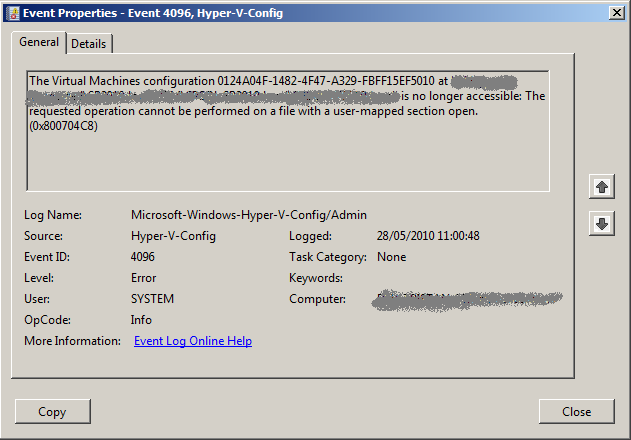
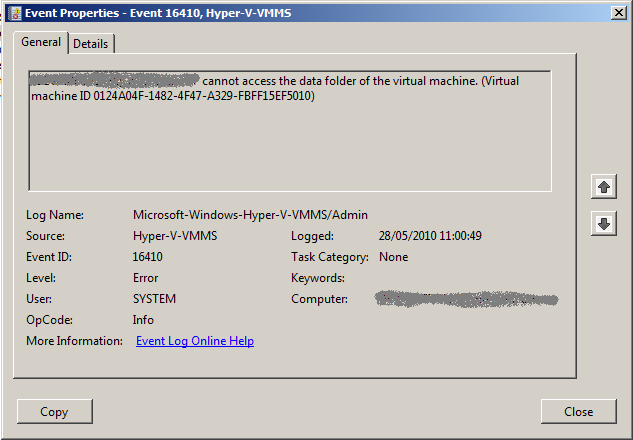
After that I tried to delete other snapshots but I kept getting errors and the VM entered a Saved-Critical state. This will happen when Hyper-V Manager cannot access a file system location or cannot find a file, for instance when a removable hard drive is pulled out.
Approximately 30 seconds later, Hyper-V thought that it regained access to the location:
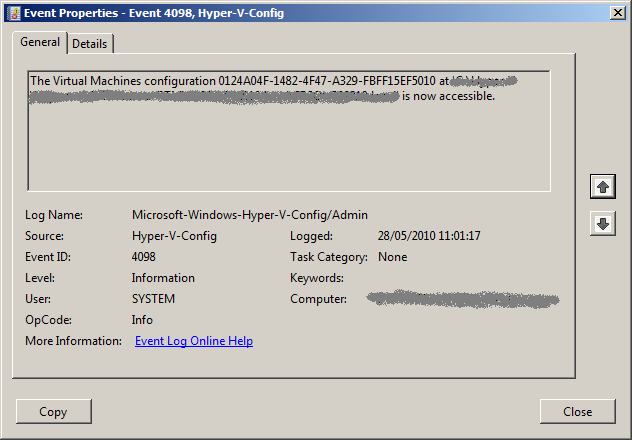
However, I couldn’t get any snapshots to delete and the virtual machine wouldn’t start. After a few minutes of panicked clicking I decided to restart the Hyper-V services. When they came back up my VM disappeared. The Virtual Machine configuration file was corrupted.
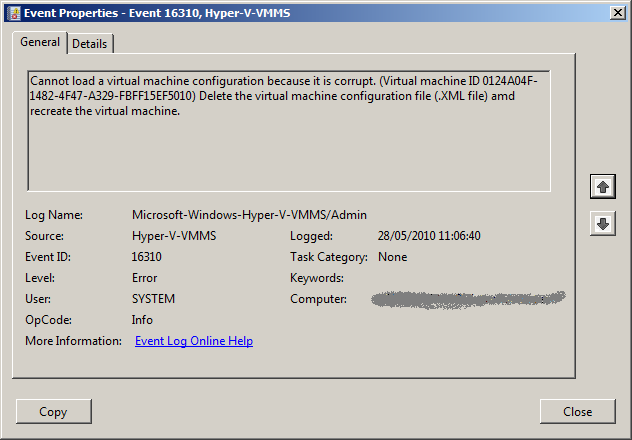
The next event suggests that a snapshot file was also corrupted.
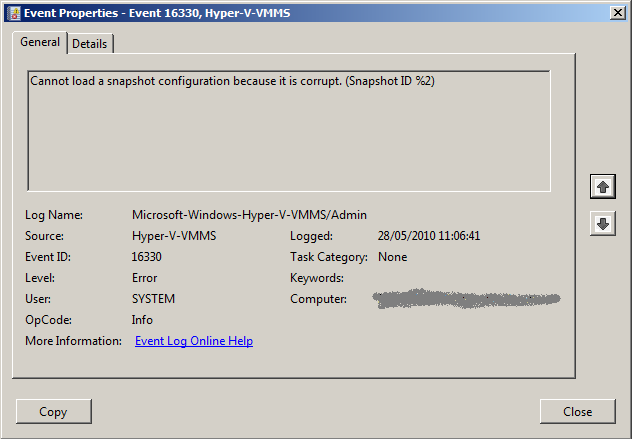
These 16310 and 16330 errors repeated for a while. Panic continued. Eventually I rebooted. On reboot the VM was still missing and the 16310/16330 errors persisted.
On a hunch I decided to see what the AVHD files (the differencing disks that correlate with snapshot states) looked like.
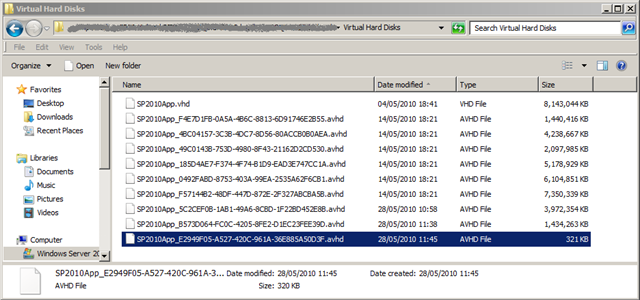
This looked very much like what I would have expected if nothing had gone wrong (and if none of the snapshot deletions completed). Sticking with this line of inquiry (and what the 16310 error suggests), I created a new virtual machine and pointed it at the most recent AVHD file (selected above). All of my snapshots were missing but the virtual machine created successfully. I started the virtual machine and it was clearly in the same state it was in before I took the most recent snapshot, with a few caveats. In my panic I forgot to re-create my second NIC, so the VM started with only one (the one that I specified when I created the new VM). I also forgot to give it a second CPU. So I shut down the VM, made these changes, restarted, reconfigured the second NIC and tested that everything worked to my expectations. Recovery complete, so I shut down both VMs again.
At this point I’d recovered the VM but I still had a bunch of unnecessary data in my branch of differencing disks. In order to clean this up, I took a new snapshot of both VMs and exported the latest snapshot of each of them. This merged all the differences across the AVHD files in to a new, self-contained VHD file. After the exports finished I deleted the old VMs, waited for the Destroy operations to complete, cleaned up lingering files on the file system and imported the new exports. I took a new snapshot, as this is my new stable starting point and everything was (relatively speaking) back to normal. Phew!
With hindsight, I would have handled the recovery as follows:
- Create new VM, pointing at latest differencing disk (or whichever snapshot state you wanted to preserve).
- Reconfigure processors.
- Reconfigure network adapters in Hyper-V Manager.
- Start the virtual machine.
- Reconfigure NICs in the guest.
- Reboot.
- Test everything is working as expected in the VM.
- Shut Down.
- Snapshot.
- Export.
- Delete old VM from Hyper-V Manager.
- Wait for the Destroy operation to complete.
- Delete any lingering files from the file system.
- Import the exported virtual machines.
As I hinted at above, having gone through this process, it occurred to me that you could probably point at whichever AVHD file you wanted to, if you didn’t want to use the latest snapshot, assuming none of the AVHD files were corrupted. In this case it was just the virtual machine XML file and possibly the snapshot file that were corrupted, rather than the VHD file and differencing disks (AVHD files) themselves. The problem would be identifying which AVHD file corresponds to the snapshot that you want to keep, but in principal I think this would work.
I should note that this is probably unsupported, but you’re not really losing anything because otherwise you would have only been able to recover the first VHD file. This technique wouldn’t be much use if you didn’t know which snapshot you were after or if you wanted to recover the entire snapshot tree, but this fix gives you some recovery where the virtual machine file and the snapshot tree are corrupted but the disk data is not.
Great article. I am having the same problem with my Hyper-V VM
Glad it helped!
FYI, most Hyper-V ‘VM corruption’ in my experience is due to bad XML files as you surmise. Originally when encountering this problem we would follow steps similar to yours, but later discovered that more often than not the VM’s XML file can be recovered easily. After stopping the Hyper-V Virtual Machine Management service, you can edit the XML files with notepad (if you don’t stop the HVMM you won’t be able to write to the files — even the ones that Hyper-V gave up on!) and correct the problem. Almost every time, there’s leftover junk at the end of the config after . Delete the junk and save the file (as a side note: if you’re like any usual tech and want to make a backup, you’ll want to copy the file first – don’t do a ‘save as’ since the config file has very specific user permissions). After restarting HVMM, the VMs should show up in the management console ready to boot!
Sorry, wp ate my XML: “Almost every time, there’s leftover junk at the end of the config after <configuration> .”
Thanks Kevin! I will definitely give that a try next time I come across this problem.
After trying just about every suggestion out there to get my vm back up and running, I found this blog and had the server up and running in no time. Just recreated the VM and pointed the hard drives to the latest .avhd file. Works perfect!!
Excellent! Glad it worked. 🙂
We have 100’s of hosted vm’s and this issue happens too often when a 2008 non-R2 host is rebooted. The vm config xml seems to write itself incorrectly upon saving the state. If you look at the end of the xml, you’ll see two keys. We delete everything after the first one, save it to overwrite, and restart the HyperV Image Manager service. Then a simple refresh in HyperV Manager and the VM shows up again in saved state. It runs fine.
I beleive this happens with non R2 only.
Hope this helps
Danny
I had the keys in the previous reply but they disappeared. The keys are /configuration
I left out the left and right brackets just in case that is why they disappeared.
Example of the xml (replaced with () otheriwse they disappear from post)
I also enclosed the part I deleted with ** so you can identify it better
…..
(settings)
(global)
(logical_id type=”string”)02A13AD3-957D-4795-AEF5-E09D78DB7C06(/logical_id)
(/global)
(memory)
(bank)
(size type=”integer”)3000(/size)
(/bank)
(/memory)
(processors)
(count type=”integer”)1(/count)
(limit type=”integer”)100000(/limit)
(reservation type=”integer”)0(/reservation)
(weight type=”integer”)100(/weight)
(/processors)
(stopped_at_host_shutdown type=”bool”)False(/stopped_at_host_shutdown)
(/settings)
(/configuration)**(processors)
(count type=”integer”)1(/count)
(limit type=”integer”)100000(/limit)
(reservation type=”integer”)0(/reservation)
(weight type=”integer”)100(/weight)
(/processors)
(stopped_at_host_shutdown type=”bool”)False(/stopped_at_host_shutdown)
(/settings)
(/configuration)**
Hi Danny. Thanks for your reply. So you know we definitely saw it in R2.
Glad I found this. I took over a new client who had a 1.2TB AVHD file which was pointing the host towards impending doom! somewhere along the line the merge failed and the VHD file would no longer boot. I was, however able to get the AVHD file to boot after reading this so my client will not notice any downtime. Now my question is this: what happens with this AVHD file? will it get converted to an VHD file or will it just be an AVHD file forever now? If it remains an AVHD will I be able to compact it? What are the long term maintenance implications?
Hi Brady. Sorry for the slow reply. The short answer is that you basically have a tree of disks, but that Hyper-V won’t know that’s what it has so I don’t believe normal tools will help. This is not a great long-term support proposition for the reasons you cite. A slightly longer answer is that I have recently found myself with a VMware virtual machine that would run, but which could not be exported, copied or anything else involving the files, due to underlying physical disk corruption. I eventually solved that problem by using Disk2VHD to spool the VM on to a new disk, which solved my problem. I have a post about that in draft but have been lazy about finishing it. Prod me if it will be helpful and I can try to accelerate things.
Great article. But for anyone following the his hindsight steps, the Snapshot in 9th step is not recommended for production environment.
Any gold image for recovery purpose should be backed up by Windows Backup process by OS’ native feature or your favorite backup software (which off course includes the system-state).