A while back, I posted an article on building a SharePoint development environment in Hyper-V, which included a part on automating deployment of the host machine. Although we’ve now moved to VMware Workstation, we still use this approach for automating deployment of our standard Windows 7 builds, and this commentary is generally relevant to any Windows Deployment Services (WDS) deployment.
When I learned WDS and the Windows Automated Installation Kit (which were both quite new in Windows Server 2008 R2 at the time), I contented myself with getting ~90% of the way to a fully-automated build, as the additional effort to get from 90 to 100% (mostly re: drivers) wouldn’t have paid enough immediate dividends and we needed to start capitalising on some of the other wins of our new environment. As is often the case, we never got back to that remaining 10%, but it’s become more of an issue in recent months, as we’ve added a few Dell Latitude E6410 and Lenovo W520 laptops – both of which had network drivers that the Windows 7/Windows Server 2008 R2 boot images didn’t recognise. Unfortunately the TechNet guidance on adding drivers to boot images is unclear (to me anyway), so I’m contributing this quick post to attempt to clarify the problem that we had and the simple step-by-step solution.
A matching network card driver was not found in this image
After preparing our image with current patches and making the state as general-purpose as possible, we ran SysPrep with Generalise and OOBE, then Shut Down the machine. I always Shut Down rather than rebooting because I don’t want to miss the window in which I need to hit F12 to trigger the PXE boot to capture the image. If the post-SysPrep boot initiates there’s a risk that the SysPrep rearm count will be incremented, which is rather undesirable.
During capture, I was able to run through the wizard but I was not able to connect to the WDS server during the imaging process. Not the end of the world… I just manually uploaded the image after the process completed. However, this was my first indication that all would not be well with the NIC drivers. Note: my solution below should be repeatable for the capture images as well as the boot images, correcting this issue as well.
When it came time to deploy the image, we got in to the Windows PE setup splash, but no further than this error:
WdsClient: An error occurred while starting networking: a matching network card driver was not found in this image. Please have your Administrator add the network driver for this machine to the Windows PE image on the Windows Deployment Services server.
An Outdated KB
As you will note in this knowledge base article (which dominates search results for this error), the work-around is fairly detailed and laborious. Nevertheless, I proceeded, with a few caveats.
- I didn’t actually get the error that the KB article describes from the Setupapi.app.log, so after a bit of head scratching, I moved on to step 2, deducing which driver I needed from my extracted NIC driver INF file.
- peimg /inf=driver.inf mountWindows, from step 3h, just didn’t work for me. “PEImg” couldn’t be found. Eventually I figured out that PEImg refers to an older version of Windows Deployment Services, so this just didn’t work.
At this point I went back to the drawing board and started reviewing the Windows Server 2008 R2 TechNet documentation, leaving this KB article behind. I was pretty sure there was a less convoluted way of getting this done anyway. Eventually I found the Add Driver Packages to Boot Image Wizard, as I’ll detail in step-by-step instructions below, but now I was getting error code 0xc1420127 in the wizard, as detailed here (with a good screen shot) and here (with this solution):
- Clear all your temp directorys.
- Browse to “HKEY_LOCAL_MACHINESOFTWAREMicrosoftWIMMountMounted Images” and delete any keys below this.
I think the important step here is the second one, which removes the mounted image that I never unmounted via imagex /unmount /commit mount; the registry keys align precisely with Imagex /info Drive:remoteinstallbootx86imagesboot.wim and Imagex /mountrw D:remoteinstallbootx86imagesboot.wim 2 mountfrom steps 3f/3g/3h:
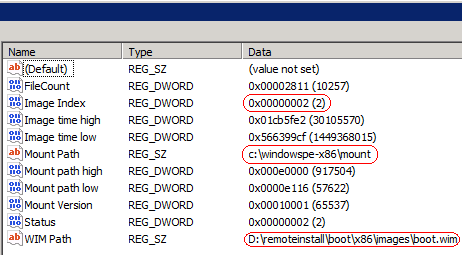
I purposely avoided committing the mount since I couldn’t make the PEImg changes, but this inadvertently caused the Add Driver Packages to Boot Image Wizard 0xc1420127 error.
A much simpler solution
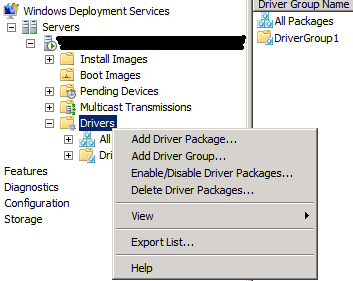
After deleting these keys, I was back on track. If I’d never stepped through the outdated KB article I could have followed these steps below and saved myself (and apparently a few others) much hassle, but for whatever reason the Add Driver Package command has always eluded me – tucked away as it is under the Drivers node in WDS. I was always distracted by the Add Driver Packages to Image command under the Boot Images node, as in step 3 below, which gets you nowhere without adding the driver first. But once you find that and step through, it’s pretty easy.
-
Add Driver Package
-
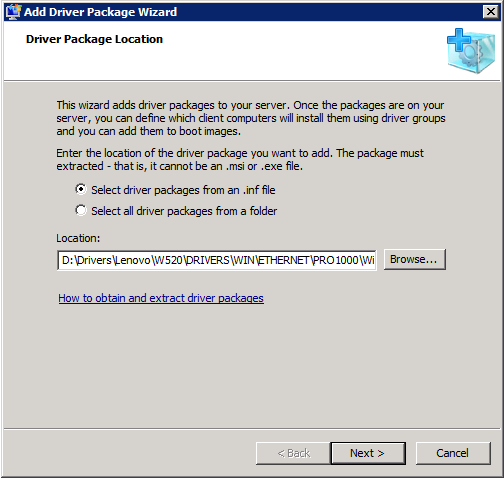
Select driver packages from an .inf file
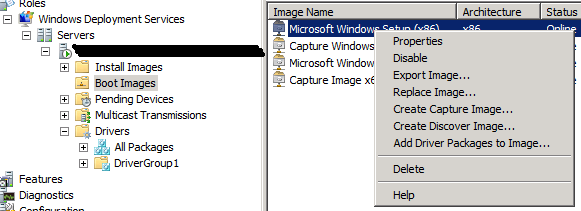
- On the boot image, select Add Driver Packages to Image:
- Click Search for Packages:
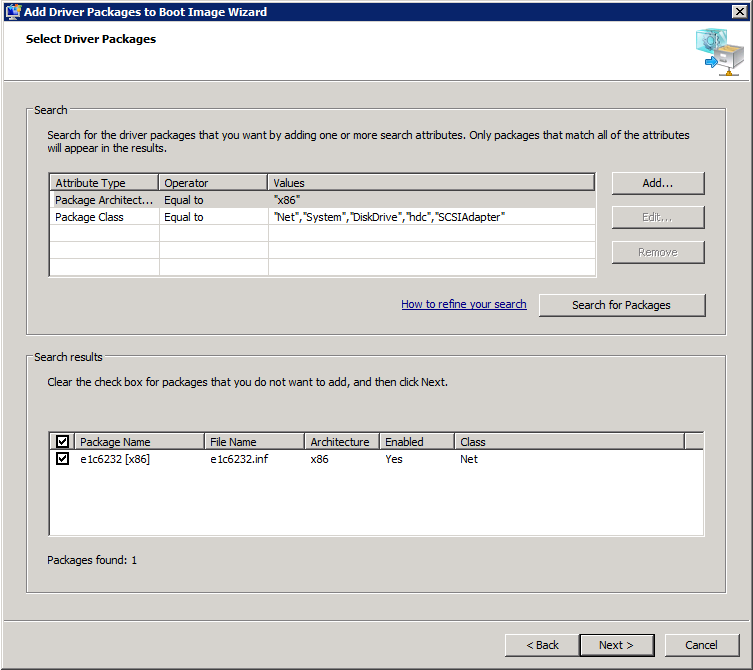
- While adding the package to the image it will be temporarily dismounted. In order to account for this in advance you can temporarily disable the image before doing any of this and then re-enable it afterwards.
Repeat this process for other boot/capture images as needed, and make sure the driver matches the boot/capture image architecture. The install image doesn’t need to match the boot image architecture though.
Ultimately, this all shows off how much better WDS in Windows Server 2008 R2 is than its predecessors, which were dark arts that few could master. Not so any more, but unfortunately automated deployment is still confusing when it goes wrong per the number of technologies that all support the same or similar ends, new and old, including WDS, WAIK, MDOP, SCCM, DISM, RIS, ADS and I’ve forgotten how many others, especially when the changing interrelationships between these products over time further obscures the quality of guidance.
Hey Tristan,
I just setup a new WDS Server and I’m just having issues with our Lenovo T420s Display Driver.
I’ve done many images for HP and never had any issues with WDS till now.
I’m getting “Code 12: This device cannot find enough free resources that it can use” and I cannot install the Intel HD Driver.
Do you have any issues installing Drivers with Win 7 Ent 32 o 64 bit?
Thanks!
LM
Hmm.. I’ve not encountered that, but I actually imaged the factory build after removing a few items of crapware and patching the system fully current, so it had the display driver in the image. However, I’ve noticed that on first boot after deploying the SysPrep’d image a new display driver is delivered via Windows Update and we get full graphics after reboot. I doubt that’s of any help, but it’s the experience we had. Unfortunately I think our scenario is probably different since we imaged the factory build.
Thanks, very clean write up on this process.
Cheers Robert!
Thanks for that, saved me a few hours. I’ll be sending some cyber-swedish-meatballs your way!
Make those Cyber-Swedish-Veggie-Meatballs please. 😉
hi
how to find the NIC Driver ? (.inf file)
for exemple , fot the HP PRO 3300 or other
thanks in advance
You need to download the driver and extract the contents. Typically the installer will ask where you want to extract them. This KB article explains the things you can do to get at them http://support.microsoft.com/kb/927524
Thanks soooooo much scracthing my head with this one for hours till I ran into your article.
Tristan, you rock! I have spent hours banging my head against the wall trying to find an easier way to add drivers to boot images, Thank you for being you!
Glad it helped!
Mr Tristan
In my WDS windows, there’s no Drivers folder, I have got all the folder such as Pending Devices, Muticas and so on. I am running W2008 R2. Do you have any idea?
Hi Sak,
I’m afraid I have no idea. That sounds pretty hosed! Is it still like that after restarting the service or a reboot? I suppose if you can’t get it working, I’d either restore it to a state when it worked, or if it never worked I’d consider removing and then re-adding the role to see if that fixes it. Make sure to take backups first though.
Hope this helps!
Cheers,
T
Mr Tristan
Thanks for your prompt respond! I have removed the role per your suggestion but still no Drivers folder. What version of W2K8 you are running Enterprise? Datacentre? Standdard?
Kind Regards
Sak
Hi Sak,
Win2K8R2 Standard typically. I guess I’d start trawling through event logs if it’s still failing, or possibly try to deploy another WDS server to see if you have the same problem.
Cheers,
Tristan
Hi Tristan,
Ive been through this for the next 7 days and i cant figure it out how to ad d the drivers until i end up here. now my questions is im runnign wds in win serv 2008 r2 all good but i dont have that part of addcing driver in the wds console managment how do i get that? please i really need it hope you know how to get it oh and it isnt in the windows updates.
Regards.
I’m afraid I’m not sure from that description, and I’ve never seen that problem, but I suggested some things to Sak above.
For those with no Drivers node in WDS: this is not available for the WDS version that goes on Windows Server 2003. If you have Server 2008 [R2] and it’s still not there – perhaps you did an in-place upgrade from Server 2003?
in reply i believe you have to install WAIK for the tab to appear. im installing it now and will report back
2008R2 fresh install has the drivers tab, WAIK is totaly seperate. You will find that adding drivers to x86 Win7 image is possible but not on vista images at all. I have tried now and fond that WDS simple stops respoinding when even adding single drivers. When this happens you have to use the dism command to unmount the image located in your appdatalocal
Hey Lennard M,
I read somewhere that if you add a lot of drivers you need to increase the scratch space from the default which is 64MB i think. never had to do this but only added a couple of drivers. I think your error sounds like it’s run out of room on the scratch disk (it usues a ram disk – not sure why it’s so low???)
Have a google and hope this helps.
LC
here is the website: http://blogs.technet.com/b/mniehaus/archive/2009/06/27/mdt-2010-new-feature-7-boot-image-creation-optimized.aspx
I am trying to capture an image from the new Lenovo x130e and when booting to pci lan I noticed it uses the Atheros Ethernet driver which none of our current computers use i.e. e6400, e6410… I get an error: No boot file name received. Any Idea on how to solve this?
I may not be understanding the question properly, but is there a reason why you can’t just add the driver package to the boot image, as described above?
Thank you for your write up. Great Job!
You nailed it, kept it clean and easy. I was starting to pull my hair out.
Thanks again,
Gordon
many thanks…
Hi,
Am having an issue where new HP Machines particularly HP 8300 Elite SFF wont pick up dhcp addresses, i was wondering if you come across this problem before all of the other PC’s work for us so we know its not dhcp thats the issue.
On one other machine the HP 6560b laptop we were able to roll back to the bios and this resolved it i was wondering if its possible to update the intel boot agent if so how?
Thank You for any help
So do you get the WdsClient error or do you not even get a DHCP address during PXE boot, thus never arriving at WinPE?
If you haven’t added the drivers for the HP 8300 Elite SFF to your boot image (not your install image) then the boot image (WinPE, not PXE) will be unable to load drivers for the NICs because the drivers don’t exist. Older machines don’t have this problem as often because Windows already has their NIC drivers built in. Apologies if I’m stating the obvious (it wasn’t obvious to me until I figured this out).
If you’re not picking up a DHCP allocation during PXE boot that’s a whole different story and I’d suggest taking that up with HP (although I would be interested to hear what you find, if that is the case). Also, if that is the scenario, can you pick up DHCP addresses once Windows is installed on the machines? And do any other operating systems work? Just wondering if it’s something about the NIC itself.
Thanks for the tip, worked great. Gotta say though, im glad i have full gig ethernet all around. Was watching my network adapter on the server when doing this and it was making good use of GigE
Thanks for the help! Saved me time and further headache…
I do not have the Drivers Folder that you described above thats why I can’t add the driver to the boot image. We are using 2008 standard. The only time I have an option to add or import drivers is through the deployment workbench and so far that has not been working . Is there a way I can get the “drivers” folder option?
Not sure unfortunately. A number of things change between 2008 and 2008 R2, so even if I had an older system available to try this out, my knowledge of how this used to work is very stale. I’m afraid I can’t be a huge amount of help there. :/ This article is really just about 2008 R2.
Thanks Tristan – nice write-up and much appreciated 🙂
Did you ever get a resolution to your problem. I am having the same issue after injecting drivers into the boot capture image.
I suppose that Drivers folder doesn’t show up if WDS is installed in mixed mode.
In native mode the Drivers folder exists.
Thank you it worked
i am not get the optiont namd DRIVER you show in first step
Hi Ravi,
A few other people have reported that problem in the comments here, although I haven’t seen it. It’s worth looking through these comments to see if any of them sound right for your deployment.
Cheers,
Tristan
this is a wonderful and very informative post.
Great Article, thanks!
I was given this website so that I can figure out how to embed the NIC drivers into my boot image on my WDS server. I see where it says to add driver packs, but when I downloaded the drivers from the internet it came as a execuable icon. It will not let me unzip it or explore it to find the .inf file. I even tried the task of finding the .inf file from the post above.
Chances are the executable unpacks the contents somewhere, or maybe even prompts you for a location when you run it. Try that in a lab to see if you can find a location where they’re unpacked, and then grab the files. Failing that, you probably aren’t the only person facing this specific problem, so do some searching to see if anyone else has managed to open it up some other way. Without knowing anything about the exe it’s hard to give any more helpful advice.
Thank you so much!!! Tristan, this saved me serious headache
I am having an issue with a Lenovo T420 when trying to capture an image. In the past when it would boot to Windows PE to start the capture image process, I would do shift + f10 to bring up a command prompt and verify that the machine has an IP in the Windows PE session. If it didn’t I would go to the D:\SWTools folder and browse for the Ethernet drivers and install them. Then I would add the drivers to the correct Capture Image listed in the Boot Images folder in the WDS console. But for some reason with the T420 even after running the install of the software, the driver is not installed correctly and I still can’t get an IP in the Windows PE session. Any ideas on that?
So I just tried connecting to the WDS server from within the Capture Image Windows PE and it connected???? Despite saying media disconnected. So unlike my other laptops this one did not show it had an IP even though it did. Go figure
HI, need your help on this, i have installed wds on 2008 r2 enterprise, also added boot image but after creating capture image, i am not able to add any drives to same boot image, windows getting freeze. while adding drivers to boot image then i have to delete capture image and then have to delete above reg. then only i am ble to add drivers to boot image even i tried second system also but still getting same error. please need your help to fix this
Hi Sameer, I’m afraid I don’t have any specific ideas, but the other comments here might help. People have encountered a few related issues.
Have done this on my WDS server here but it doesn’t like unsigned x64 drivers using this method. Any workaround for this?
I’m not sure about that. Is the issue that they are x64 or unsigned?
I think it is the fact that Microsoft want everything to be 64 bit as 32 bit drivers aren’t required to be signed and can be installed with no issue but if the 64 bit version of the same driver is installed and is not signed then it will not import them to the driver group.
As is checked there is no driver folder in WDS MMC ???
Yeah, that rings a bell, but I’m afraid I’m not sure. I’d be searching for the answer myself.
It’s worth reading through the comment above Manoj. One comment from Roman says, “I suppose that Drivers folder doesn’t show up if WDS is installed in mixed mode.
In native mode the Drivers folder exists.” Worth a go!
Anyone have any luck trying to add drivers for Lenovo Thinkcentre e63z? I’m not sure if the drivers are unsigned, but the installation fails every time. I’ve tried multiple sources for the driver, and tried some generic ones too, but they just keep failing.
It’s amazing in favor of me to hwve a web site,
which is good inn favor of my know-how. thanks admin